Safe, guided remote assistance

Remote Support Made Easy

Download RustDesk for the computer that needs help. Keep this page open and follow the pictures below. You do not need to understand the technical details—I will guide you through the rest by phone.

Checking your computer… The correct download button will appear automatically.

Official RustDesk download. Current fallback version: 1.4.9.

Stay safe from remote-access scams

Do not install RustDesk because of an unexpected phone call, pop-up, email, or text message. The Computer Touch will never ask you to buy gift cards, move money, disclose a banking password, or hide a support session from someone else. You can click Cancel, Disconnect, or close RustDesk at any time.

Start here

Four simple steps

Use the large download button above, then follow these steps. The screens may look slightly different after a software update.

1

Download

Click the blue download button for your computer.

2

Open RustDesk

Open the file from your browser’s Downloads list or Downloads folder.

3

Call us

Keep RustDesk open and call The Computer Touch.

4

Read the numbers

Tell us the ID and one-time password shown in RustDesk.

Windows Step-by-step Windows instructions
  1. Click “Download RustDesk for Windows.” The file name will begin with rustdesk- and end with .exe.
  2. Open the downloaded file. In Chrome or Edge, click the download icon near the upper-right corner and click the RustDesk file. You can also open your Downloads folder.
  3. Approve Windows prompts. Click Yes if Windows asks whether RustDesk can make changes. If Microsoft Defender SmartScreen appears, confirm that the publisher/file is RustDesk before continuing.
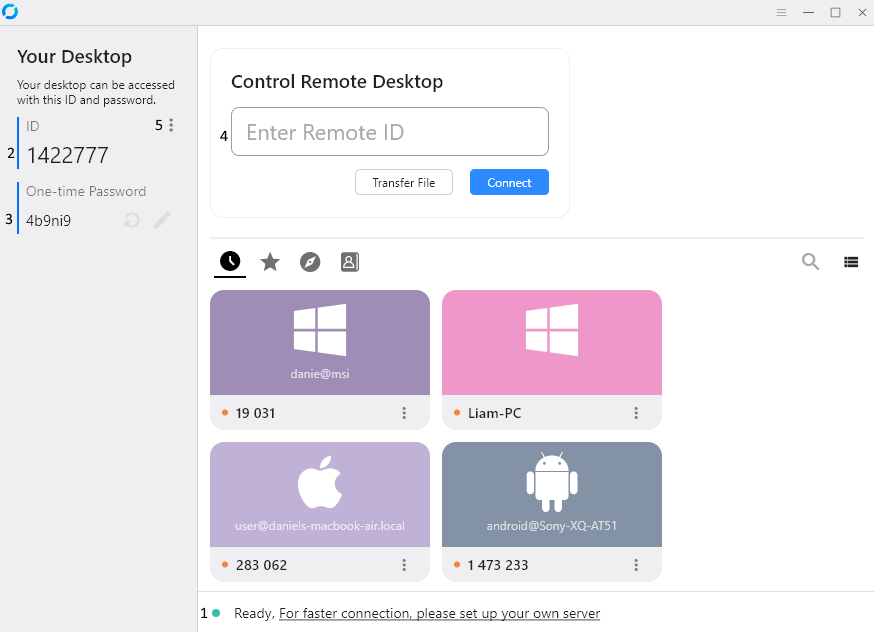
  4. Keep RustDesk open. Call The Computer Touch and read the ID and One-time Password shown on the left side.
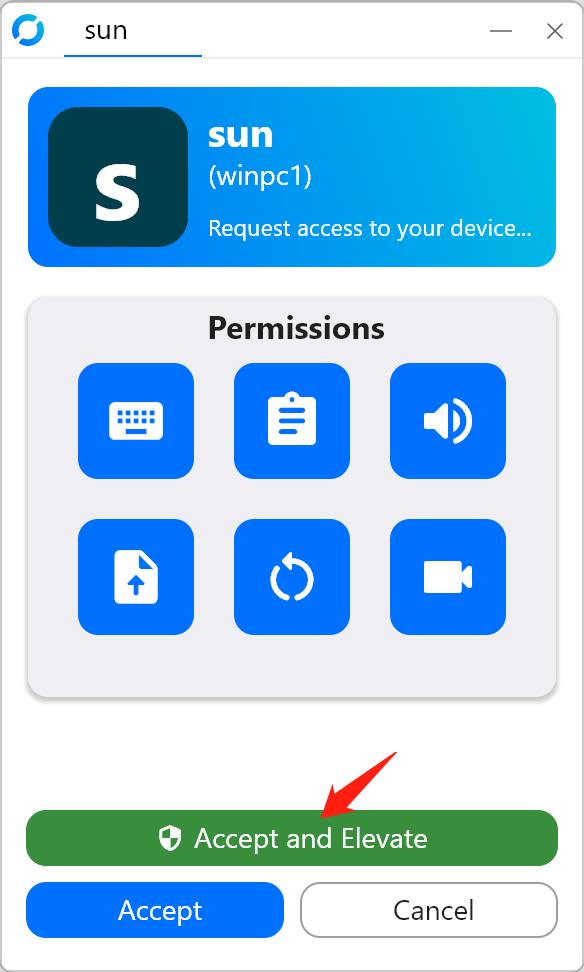
  5. Accept the connection. When the connection request appears, click Accept and Elevate when instructed. This lets us work with administrator prompts during your support session.
  6. Close RustDesk when finished. Click Disconnect or close the RustDesk window after we confirm the session is complete.
RustDesk main window showing the ID and one-time password on the left
Read the ID and one-time password from the left side of RustDesk.
RustDesk incoming connection screen with the Accept and Elevate button highlighted
Click “Accept and Elevate” only when The Computer Touch asks you to.
Mac Step-by-step Mac instructions

Choose your Mac type

Most Macs made in late 2020 or newer use Apple Silicon. Click the Apple menu  → About This Mac. Look for “Chip” (Apple Silicon) or “Processor” (Intel).

  1. Download the correct Mac file. The file name will end with .dmg.
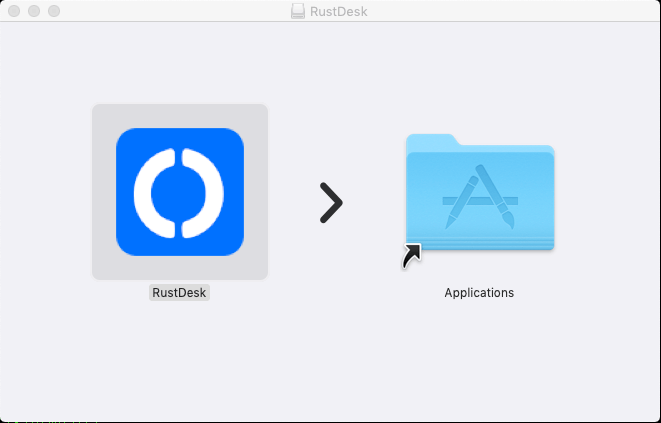
  2. Open the downloaded DMG. Drag the RustDesk icon into the Applications folder, as shown in the picture.
  3. Open RustDesk from Applications. If macOS blocks it, open System Settings → Privacy & Security, scroll down, and choose Open Anyway.
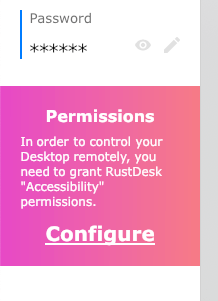
  4. Allow the required permissions. In RustDesk, click Configure. Turn on RustDesk under Accessibility, Screen Recording, and Input Monitoring when shown. You may need to close and reopen RustDesk.
  5. Call The Computer Touch. Read the ID and one-time password from the RustDesk window.
  6. Close RustDesk when finished. End the session and close the app after support is complete.
Mac RustDesk disk image showing the RustDesk icon being dragged into Applications
Drag RustDesk into Applications.
RustDesk permissions notice with a Configure link
Click Configure and allow the requested macOS permissions.
Linux Linux download and instructions
  1. Choose the package for your Linux distribution. Ubuntu, Linux Mint, and Debian normally use the .deb package. Other distributions may use AppImage, RPM, Flatpak, or another package.
  2. Open the downloaded package with your software installer, or install it using your distribution’s normal package tools.
  3. Open RustDesk and call The Computer Touch. Read the ID and one-time password shown in the app.
  4. Approve screen-sharing and input permissions if your desktop environment requests them. Wayland systems may have additional limitations.
Wrong device or automatic detection incorrect?

Download for another computer

Choose the computer that needs support. For complete remote repair, open this page on that Windows, Mac, or Linux computer—not only on your phone.

RustDesk is third-party open-source software. Downloads are provided directly from the official RustDesk GitHub release repository. Screenshots are from the official RustDesk documentation. View official RustDesk documentation.

Stuck on a step?

Stop where you are and call. We can talk you through the next click.